Setup guide
Jump to what you installed. SpeakFlow Pro is the desktop app for live speech; the Chrome extension is a separate, free product for YouTube.
🍎 SpeakFlow Pro — Mac
Live speech translation. No API keys; hours are included.
Download & install
Download the .dmg, open it, drag SpeakFlow Pro to Applications, then open it from Applications.
Grant permissions
On first launch the app shows a permissions sheet with a button for each one: Screen & audio recording (to hear the call or video; macOS relaunches the app after you grant it), Microphone, and Accessibility (to type translations into chat boxes and for the ⌘⇧D shortcut). The sheet closes itself once everything is granted.
Take your free hour, or activate a key
Sidebar → Licence → Try free for 1 hour (no card). Bought hours? Paste your SFL-XXXX-XXXX-XXXX key and press Activate. One key works on 2 Macs.
Pick a preset and press Play
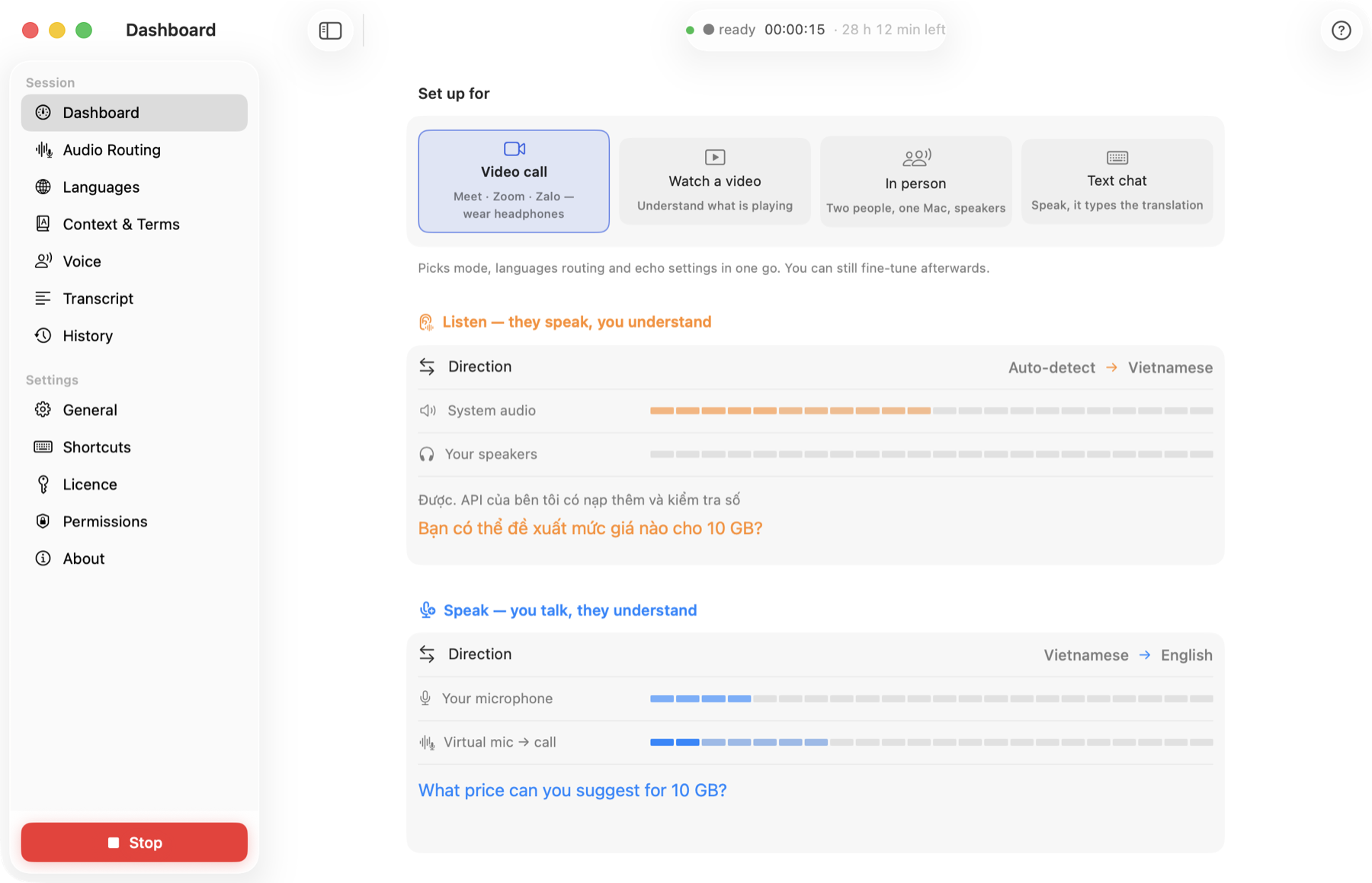
Video call — in Meet / Zoom / Teams choose "SpeakFlow" as the microphone; you hear them translated, they hear you translated. Watch video — any audio on your Mac, in your language. In person — one Mac between two people, both directions through the speakers. Text chat — speak, and the translation is typed into the chat box under your cursor.
Languages & voice
Languages: what they speak (or Auto) and what you want to hear; what you speak and what they should hear. Voice: choose one of ~100 voices or record 30 s to clone yours; adjust the speed.
Context (optional, recommended)
Sidebar → Context: name the topic, add names and jargon, or turn on auto-detect so the app learns the subject during the call. Technical words come out right.
Handy shortcuts
Hold a key to talk (push-to-talk) · ⌘⇧R replay the last sentence · ⌘⇧M summarise the last minutes · ⌘⇧D translate & read selected text · type-to-speak box on the dashboard. Drag the floating captions anywhere and resize them from the corner.
🪟 SpeakFlow Pro — Windows
Same app, same licence, same hours as the Mac version. Windows 10 or 11, on Intel/AMD (x64) or ARM.
Download & install
Download the installer and run it. Windows may show a "unrecognised app" warning until the app is code-signed — choose More info → Run anyway. Prefer no installer? Download the .zip and run SpeakFlowPro.exe straight from the folder.
Nothing to grant
Unlike the Mac, Windows lets the app listen to your sound card directly — no screen-recording permission, no accessibility prompt. Open it and it can already hear your computer.
Take your free hour, or activate a key
Sidebar → Licence → Try free for 1 hour (no card). Bought hours? Paste your SFL-… key and press Activate. One key covers 2 computers, Mac or Windows, and the hours are shared.
Listening works right away
Pick Watch video or Video call and press Play. You hear the translation over the top, and the original is turned down automatically so the two voices do not fight. Captions and the transcript need nothing further.
To be heard in a call, add a virtual cable
Windows has no built-in way to feed audio into a call as a microphone. Install the free VB-CABLE, restart, then in SpeakFlow: Routing → Your translated voice goes to → CABLE Input. In Zoom / Meet / Teams choose CABLE Output as the microphone. Press Play a test sentence in Routing to check it before the call.
Only the speaking direction needs this. Listening, captions and transcripts work without any cable.
Languages, voice & context
Same as the Mac: Languages sets each direction, Voice picks from nearly 100 voices or clones your own, and Context lets you name the topic or let the app work it out while you talk.
Handy shortcuts
Ctrl+Shift+S start or stop · Ctrl+Shift+R replay the last sentence · Ctrl+Shift+M summarise the last few minutes · Ctrl+Shift+D translate and read the selected text. Push-to-talk is in Shortcuts.
speakflow.log.🌐 SpeakFlow Translate — Chrome extension
Translates and dubs YouTube videos in the browser. Free; VIP unlocks premium AI models. It does not translate calls — that's SpeakFlow Pro above.
Add to Chrome
Install SpeakFlow Translate from the Chrome Web Store (Chrome / Edge / Brave on desktop).
Open a YouTube video
SpeakFlow adds a floating play button on the page. Click it to start translating & dubbing.
Pick language & voice
Open the extension popup → choose target language, voice and translation engine. Use SRT to export subtitles or get an AI summary.
Upgrade to VIP (optional)
For premium AI models (Gemini, DeepSeek, GPT, Claude), premium voices and AI summary: popup → ⭐ VIP or your account page → sign in → pay with PayPal or card. VIP is an account, not a licence key.